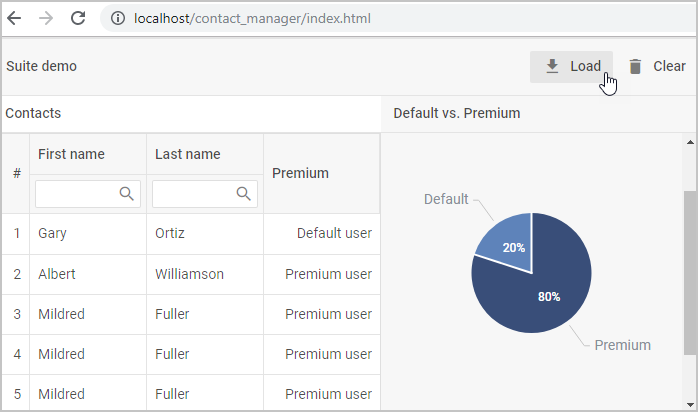
Step 7. Display Data in the Chart
Before displaying data in the chart we need to process grid data.
Process grid data
To do that, we'll create a getCountUsers() function given below:
function getCountUsers(){
    vipUser = grid.data.reduce(function(acc, item) {
        return item.vip ? acc + 1 : acc;
    }, 0);
    defUser = grid.data.getLength() - vipUser;

    var pieData = [];

    if (vipUser > 0) {
        pieData.push( { value: vipUser, color: "#394E79",
            text: "Premium Users" })
        }
    if  (defUser > 0) {
        pieData.push( { value: defUser, color: "#5E83BA",
            text: "Default Users" })
        }
    return pieData; //return the processed data for the chart
};
Let's look at its logic in detail.
First, we count the number of VIP users through the reduce() method of Data Collection:
vipUser = grid.data.reduce(function(acc, item) {
    return item.vip ? acc + 1 : acc;
}, 0);
After that we determine the total number of users by using the getLength() method of Tree Collection and then calculate the number of default users.
defUser = grid.data.getLength() - vipUser;
Finally, we create an array to add data about the number of default and vip users with the help of the push() operation.
var pieData = []; // create an array

if (vipUser > 0) {
    pieData.push( { value: vipUser, color: "#394E79",
        text: "Premium Users" })
    }
if  (defUser > 0) {
    pieData.push( { value: defUser, color: "#5E83BA",
        text: "Default Users" })
};
As a result of the getCountUsers() function call we get a dataset for the chart.
##Display data in the chart
After processing grid data, we need to show it in the chart.
To display the data loaded in the chart, we will use the Load event of data_collection/api/refs/datacollection.md. Inside the event handler we'll call the parse() method to parse data in the chart.
grid.data.events.on("Load", function(){
    chart.data.parse(getCountUsers());
});
When data is changed in the grid, we should update the chart data as well. For this purpose we'll use the Change event of data_collection/api/refs/datacollection.md.
grid.data.events.on("Change", function(id,status,updatedItem){
    chart.data.parse(getCountUsers());
});
##Get the result
After finishing all the steps described in the tutorial, you get a mini app that looks like this: