Blocking and Marking Dates
The library provides the Limit extension that allows you to block and mark (highlight) certain dates or date ranges.
To start using the plugin, activate it on the page.
scheduler.plugins({
    limit: true, /*!*/
    timeline: true
});
Configuration options
The extension gives at your disposal the next configuration options:
- display_marked_timespans - defines whether the marked (blocked) time spans should be highlighted in the scheduler
- check_limits - activates/disables checking of limits
- mark_now - enables/disables the marker displaying the current time
- now_date - sets the date for the mark_now option
- limit_end - sets the end limit of the allowable date range
- limit_start - sets the start limit of the allowable date range
- limit_view - limits viewing events
Related events
If the scheduler detects an attempt to create/modify an event with a non-allowed date, the onLimitViolation event will be generated.
How to block certain dates?
There are a couple of methods you can specify a limit in the scheduler with:
- addMarkedTimespan - marks dates, but with certain settings makes blocking (allows setting custom styling for the limit)
- markTimespan - marks and/or blocks date(s) by applying the default or a custom style to them. Marking is canceled right after any internal update occurs in the app. Can be used for highlighting
How to mark certain dates?
There are 2 methods that can be used to mark the specified date(s):
- addMarkedTimespan - marks dates, but with certain settings makes blocking (allows setting custom styling for the limit)
- markTimespan - marks and/or blocks date(s) by applying the default or a custom style to them. Marking is canceled right after any internal update occurs in the app. Can be used for highlighting
Handling the pointer highlighting
Removing marking/blocking
There are a couple of methods that can be used to remove the currently marked/blocked time spans:
- deleteMarkedTimespan - removes marking/blocking set by the addMarkedTimespan method
- unmarkTimespan - removes marking/blocking, set by the markTimespan method
Handling the pointer highlighting
Blocking priority
When you call the 'blocking' methods several times and block different ranges, blocking will follow this priority (from highest to lowest):
- Dates specified through Date() objects for certain items;
- Dates for certain items (when the sections parameter is defined);
- Dates specified through Date() objects;
- Other dates.
- A blocking/marking with the higher priority will overwrite ones with the lower priority if they have the same type.
- Several blocking/marking methods with the same priority (located in the same time slot) will be applied simultaneously.
For example:
scheduler.addMarkedTimespan({ // blocks 4th July, 2012 (this is Wednesday).
    days:  new Date(2019, 7, 4),
    zones: "fullday",
    type:  "dhx_time_block",
    css:   "red_section" // the name of applied CSS class
});
scheduler.addMarkedTimespan({ // blocks each Sunday, Monday, Wednesday
    days:  [0, 1, 3],
    zones: "fullday",
    type:  "dhx_time_block",
    css:   "blue_section" // the name of applied CSS class
});
//blocks each Sunday and Wednesday just for an item with id="2"
scheduler.addMarkedTimespan({
    days:  [0,3],
    zones: "fullday",
    type:  "dhx_time_block",
    css:   "gray_section",  // the name of applied CSS class
    sections: { timeline: 2}
});
As a result of calling these methods you will get the following:
- First of all, the scheduler will block each Sunday and Wednesday for the item (id="2)" in the Timeline view and color them in gray.
- Then, will block 4th July, 2012 and color it in red.
- Finally, will block each Sunday, Monday, Wednesday and color them in blue.
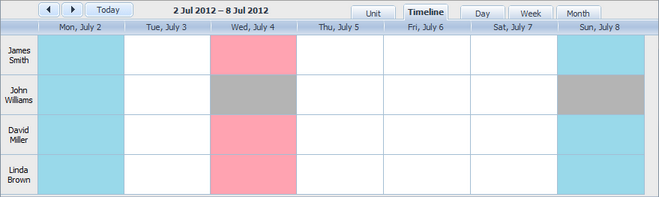
In order to change this behavior and display all markers regardless of their priority, you can use the overwrite_marked_timespans setting:
scheduler.config.overwrite_marked_timespans_config = false;